Property and building

Home Renovation Budget & Contractor Comparison System

Keep your renovation's budget, contractor quotes, agreed changes and payments together in one Excel workbook, and see what the whole job is now forecast to cost. With a step-by-step guide and a completed example.

For customers in the UK only.

One-off payment. Instant download, with the link emailed to you. Digital product, nothing is posted.

Microsoft Excel (.xlsx), Word (.docx), PDF. Tested in Microsoft 365 Apps for business (Excel and Word, Version 2610) on Windows. Not tested on a Mac, in Excel for the web, Google Sheets, Apple Numbers or LibreOffice. No macros. Read the limitations before you buy

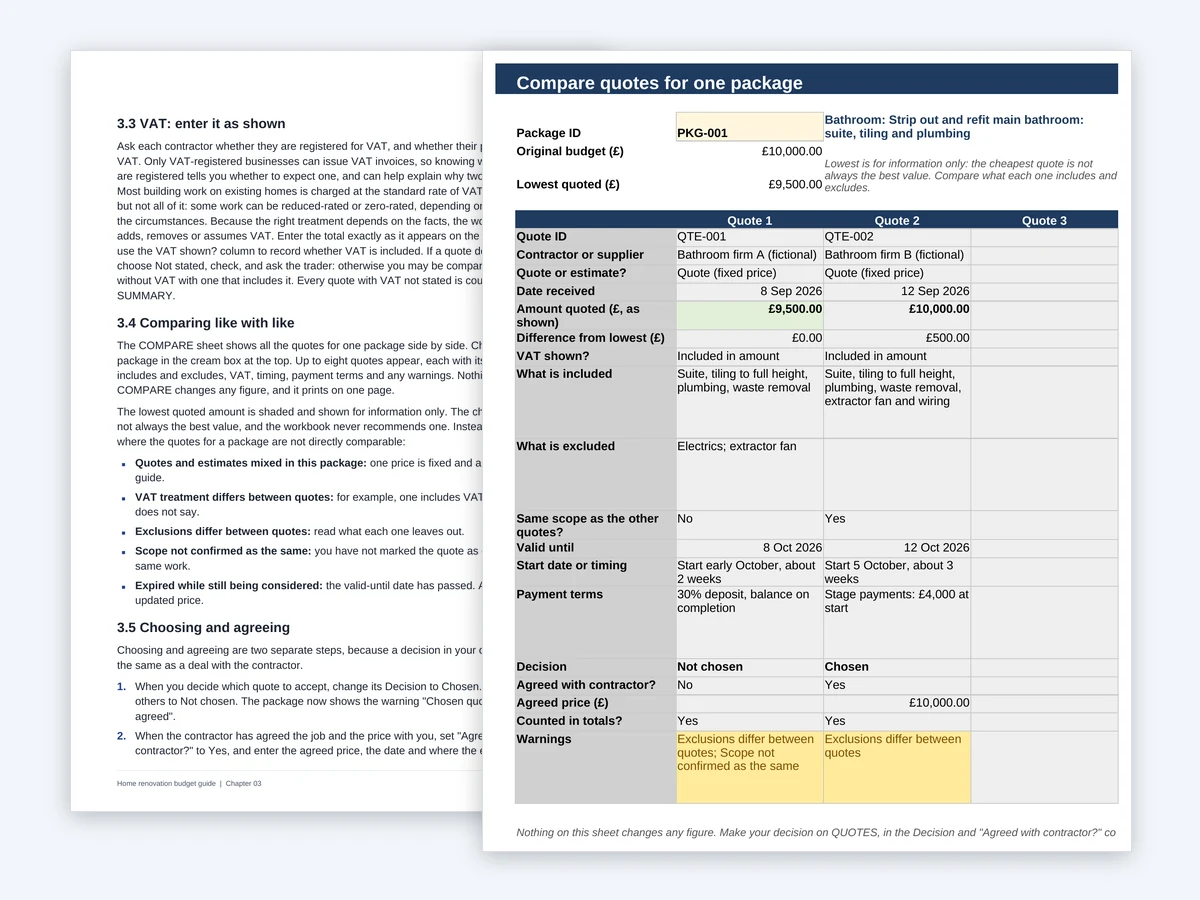
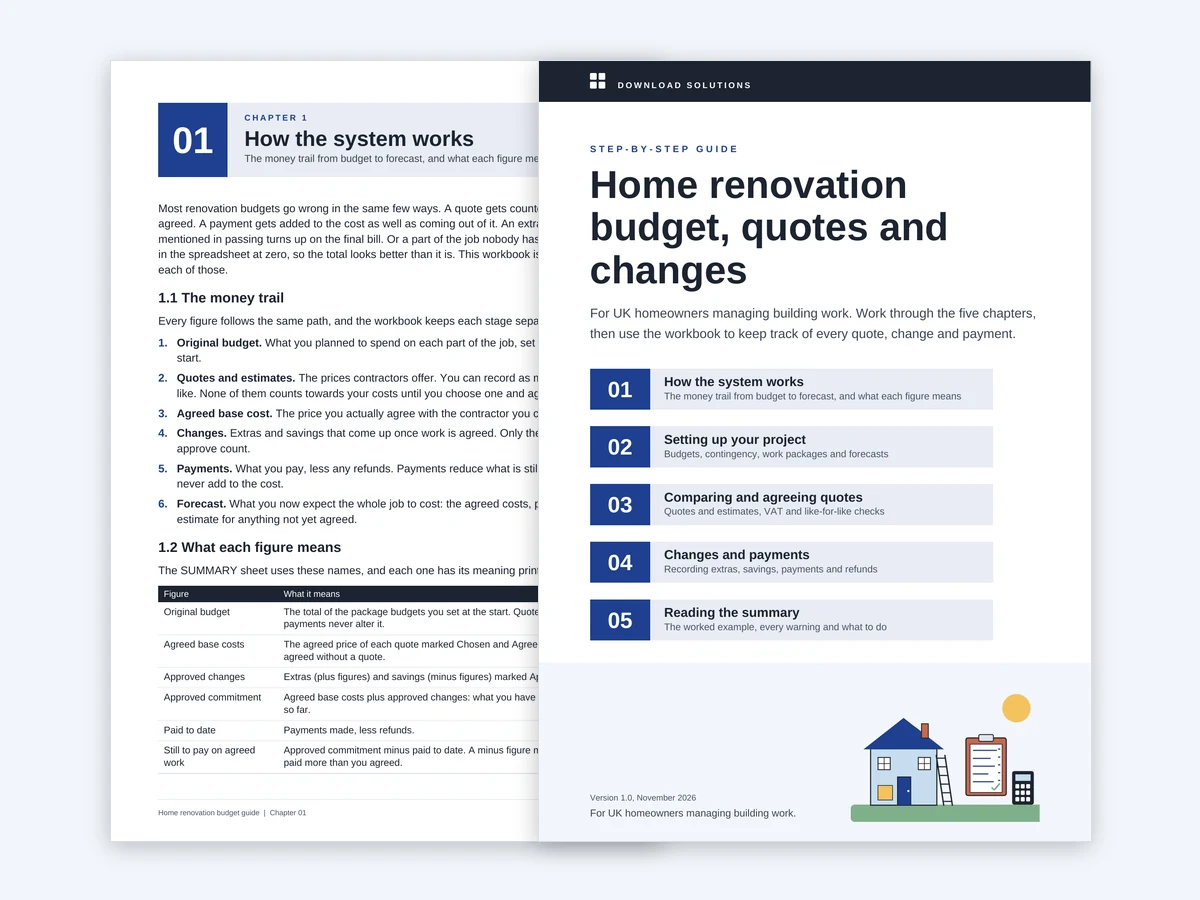
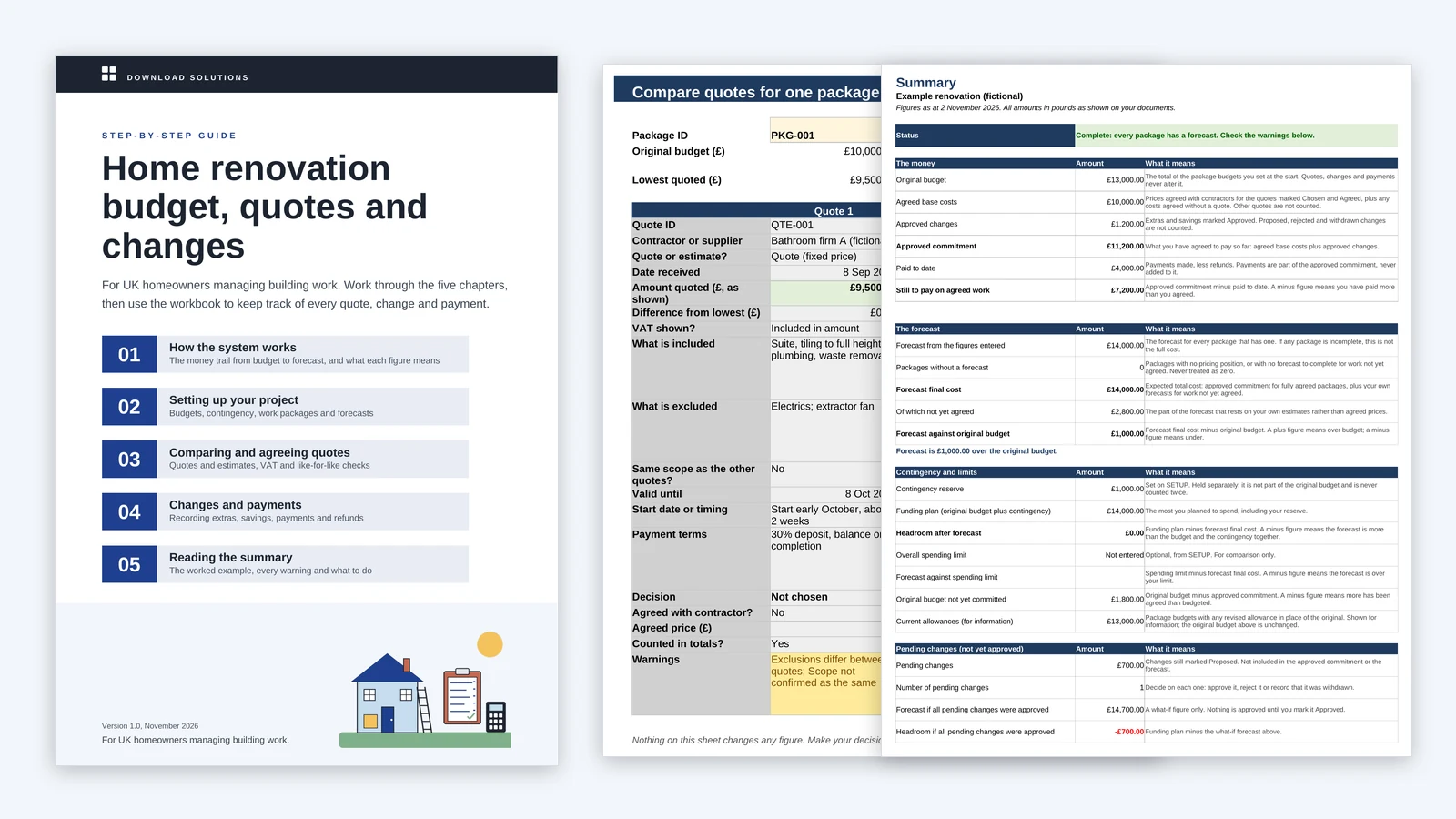
The guide cover beside the COMPARE sheet with two fictional bathroom quotes side by side and the SUMMARY sheet for the worked example

The problem

Quotes, extras and payments pile up in different places, and it gets hard to say what the job will really cost.

A renovation with more than one part soon produces a pile of paperwork: two or three prices for each job, some fixed quotes and some estimates, some including VAT and some that do not say. They rarely cover exactly the same work, so the lowest price is not always the cheapest job.

Once work starts, the builder suggests extras, you ask for changes and payments go out in stages. A quote gets counted as if it were agreed, a payment gets added to the cost as well as coming out of it, or a part of the job nobody has priced yet sits at zero, so the total looks better than it is.

This system keeps each stage separate: what you budgeted, what you were quoted, what you agreed, what changed and what you have paid. It shows what the job is now forecast to cost, and says plainly when that forecast is incomplete.

What it does for you

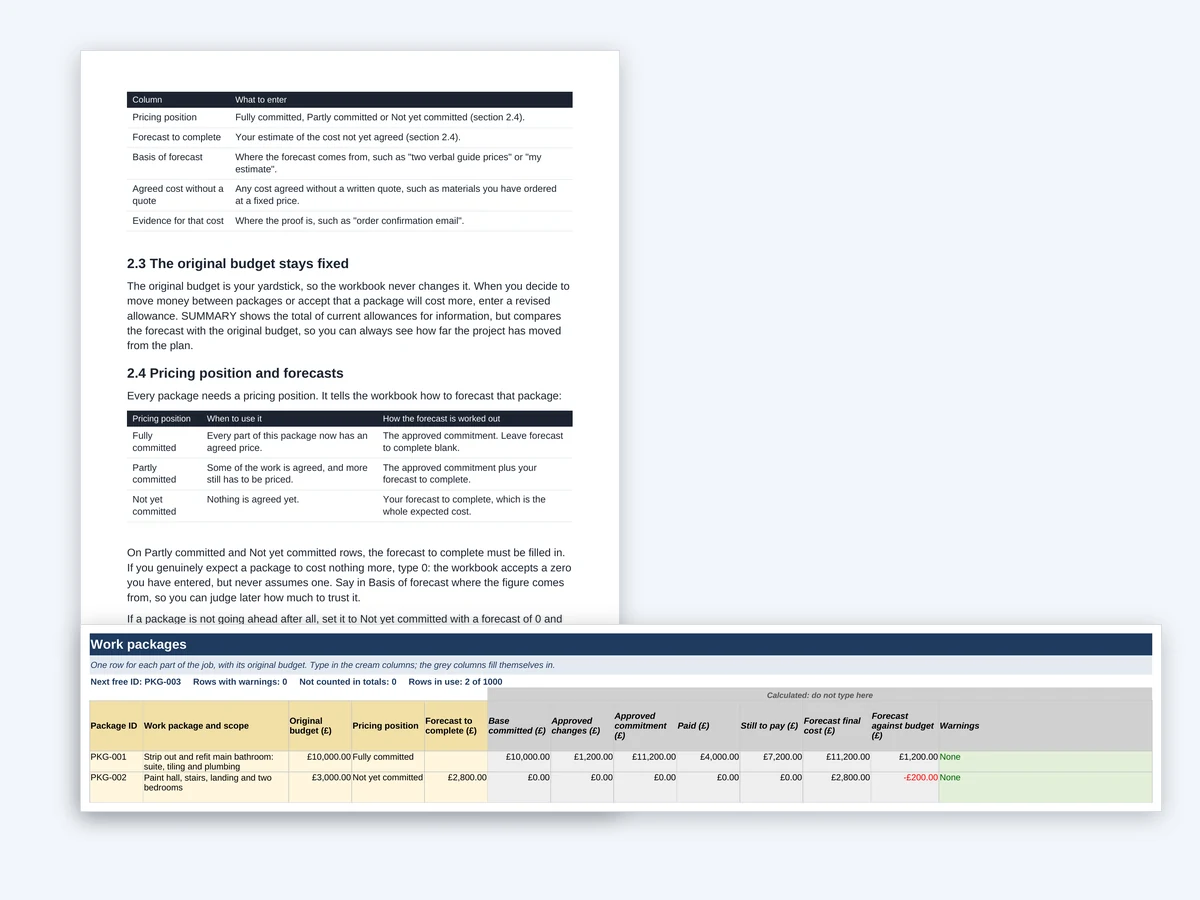
The PACKAGES sheet with a bathroom and a decorating package, each showing its original budget, pricing position, approved commitment, forecast final cost and warnings, in front of the guide's section on pricing positions

01

A budget for each part of the job

List each part of the job as a work package, such as the bathroom, the rewiring or the decorating, with the budget you set at the start. The original budget never changes. Each package has a pricing position, so the workbook knows whether to use the agreed price, your own forecast for the rest, or both.

The COMPARE sheet showing two fictional bathroom quotes side by side, with what each includes and excludes, VAT, payment terms and a warning that the exclusions differ, beside the guide's section on comparing like with like

02

Quotes compared like for like

Record every quote and estimate, with what each includes and excludes, VAT, timing and payment terms. COMPARE lines up to eight quotes for one package side by side and warns when they are not like for like: a fixed quote against an estimate, different VAT treatment, different exclusions or a quote past its valid-until date. The lowest price is shaded for information only. The workbook never picks a contractor for you.

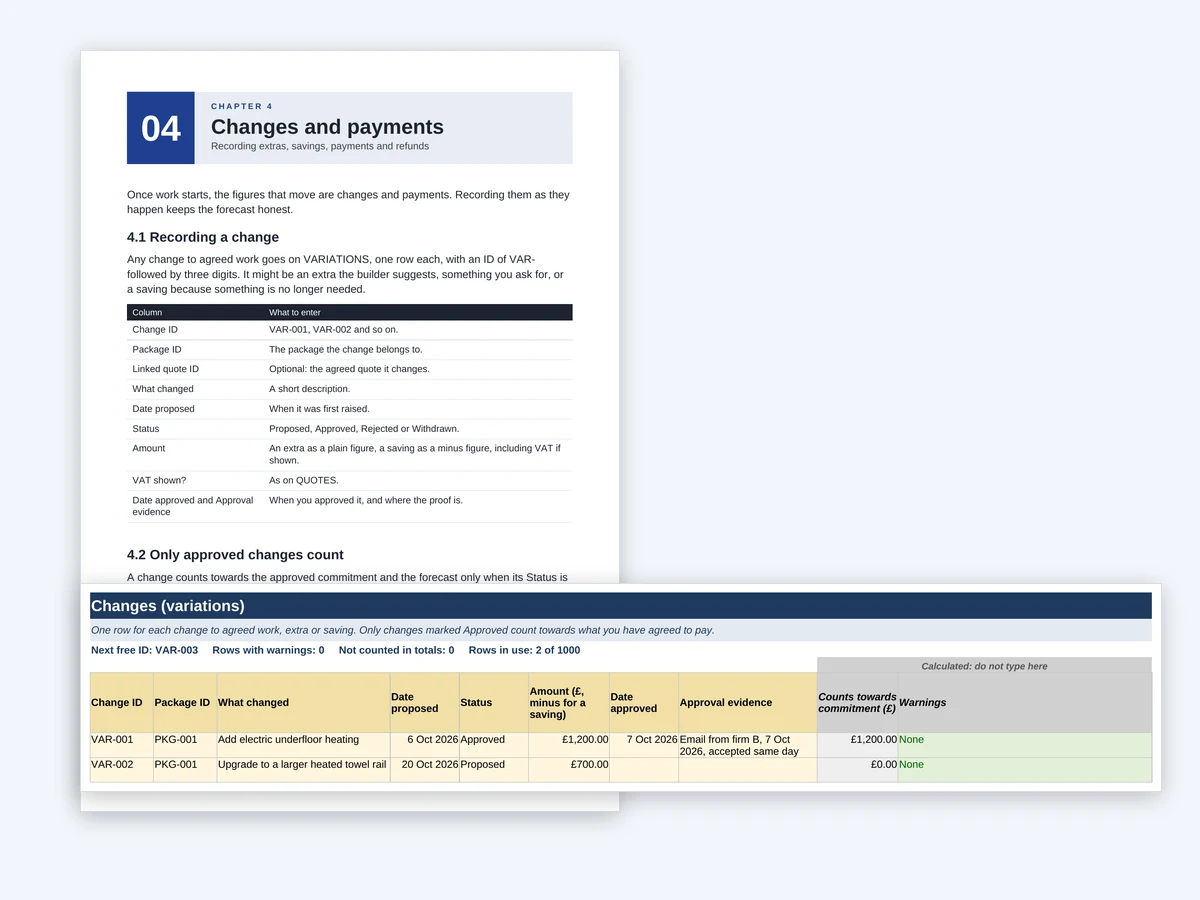
The VARIATIONS sheet with an approved underfloor heating extra of £1,200 counted and a proposed towel rail of £700 not counted, in front of the guide's chapter on changes and payments

03

Extras and savings that count only once approved

Each change goes on VARIATIONS as Proposed, Approved, Rejected or Withdrawn. Only approved changes count towards what you have agreed to pay and the forecast. Proposed changes are added up separately, with a line showing the forecast if you approved them all, and an approved change with no date or evidence is flagged.

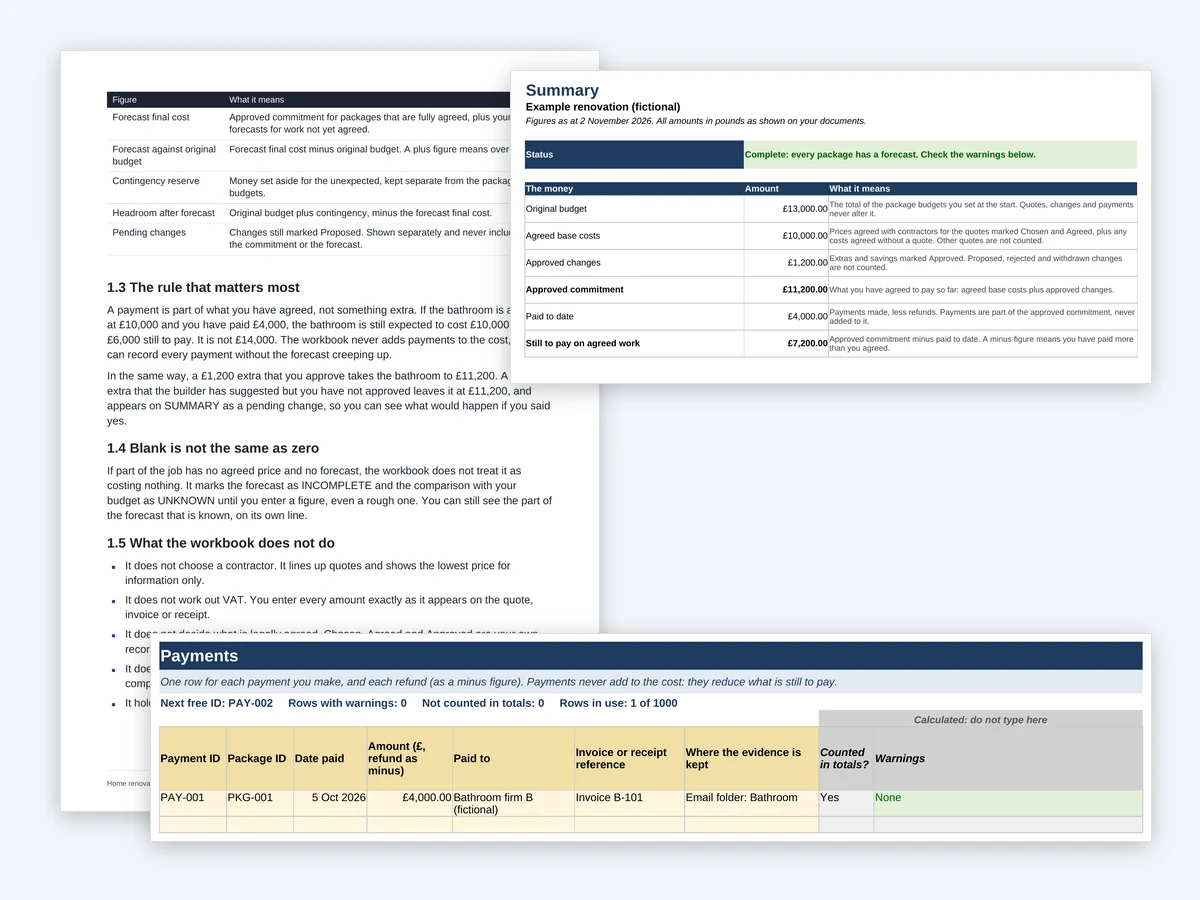
The PAYMENTS sheet with one £4,000 payment, and the summary showing an approved commitment of £11,200, £4,000 paid and £7,200 still to pay, in front of the guide's section on the rule that matters most

04

Payments that never add to the cost

Record each payment and refund against its package. A payment reduces what is still to pay and is never added to the cost, so a £4,000 stage payment on a £10,000 job leaves the job at £10,000 with £6,000 still to pay. Refunds go in as minus figures, and paying more than you have agreed is flagged.

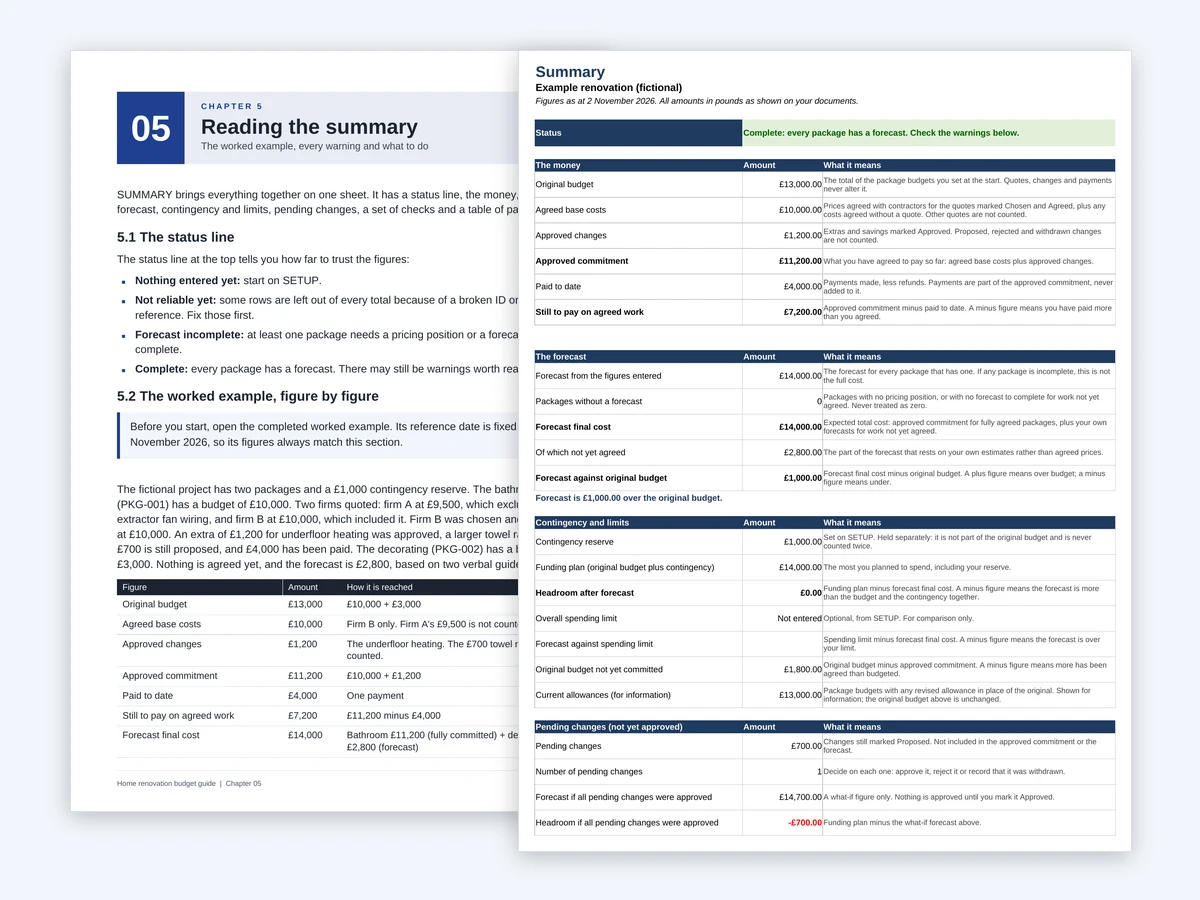
The SUMMARY sheet for the fictional example, with its status line, the money, the forecast, contingency and pending changes, beside the worked example chapter of the guide

05

One summary that says how far to trust it

SUMMARY shows the original budget, agreed costs, approved changes, paid to date, still to pay, the forecast final cost, your contingency and the headroom left. A status line says whether the forecast is complete, incomplete or not yet reliable, and a checks section counts anything that needs attention, such as a quote with VAT not stated or a payment against a package that does not exist. Its package table shows up to 40 packages.

The guide cover listing its five chapters, in front of the opening page of Chapter 1, How the system works

06

A plain-English guide and a worked example

The guide takes you through setting up, comparing and agreeing quotes, recording changes and payments, and reading the summary. It summarises Citizens Advice guidance on quotes, estimates, deposits and cancelling, and GOV.UK guidance on VAT for building work, with a list of the sources. A completed example for a fictional two-part renovation shows every figure worked through.

Is it right for you?

A good fit if

  • You are a homeowner organising a renovation with several parts, such as a bathroom, rewiring and decorating, each priced and paid for separately.
  • You are collecting quotes from more than one contractor and want to compare what each one actually covers.
  • You want to see what you have agreed, what you have paid and what the whole job is now likely to cost, without counting anything twice.
  • You have Microsoft Excel on a Windows computer and are comfortable typing into cells and choosing from drop-down lists.
  • You are in the UK. The guide summarises Citizens Advice guidance for England and tells you to check the version for where you live.

Not the right choice if

  • You want someone to cost the job, check a contractor or tell you which quote to accept. The workbook records your figures and decisions; it does not make them.
  • You need a quantity surveyor, a legal or contract adviser, planning or building control advice, or help with a dispute.
  • You need a schedule with dates and tasks, or a tool that links to your bank, captures receipts or syncs online.
  • You will be using a Mac, Excel for the web, Google Sheets, Apple Numbers or LibreOffice. The workbook has only been tested in desktop Excel for Windows.
  • You are a builder or contractor pricing work for your own customers.

What is in the download

Home renovation workbook (Excel)
A blank eight-sheet workbook: START HERE, SETUP, PACKAGES, QUOTES, COMPARE, VARIATIONS, PAYMENTS and SUMMARY. The record sheets come ready-formatted and grow as you type, up to 1,000 rows each.
Worked example (Excel)
The same workbook completed for a fictional renovation with two packages, a bathroom and decorating. Its figures are a demonstration, not a typical result.
User guide (PDF)
A cover and 17 pages in five chapters, with a list of the sources checked, for reading on screen or printing.
User guide (Word)
The same guide as an editable Word file, for your own notes.
README (text file)
Where to start, what you need, the sources checked and the licence.

Microsoft Excel (.xlsx), Word (.docx), PDF. Tested in Microsoft 365 Apps for business (Excel and Word, Version 2610) on Windows. Not tested on a Mac, in Excel for the web, Google Sheets, Apple Numbers or LibreOffice. No macros. Version 1.0, last updated 2 November 2026.
Before you buy: the limitations

  • It is a record-keeping tool, not legal, tax, building or financial advice, and it is not approved by Citizens Advice, HMRC or any other body. It submits nothing to HMRC or any other authority, and you remain responsible for checking your entries against your own quotes, contracts, invoices and receipts.
  • Its figures are only as reliable as what you enter. The forecast final cost is built from your own entries and estimates. It is not a quote and not a promise of what the final bill will be.
  • It does not work out VAT. You enter each amount exactly as it appears on the quote, invoice or receipt. Whether VAT is charged, and at what rate, depends on the work and the circumstances: see GOV.UK's guidance on VAT for builders.
  • It does not decide whether a contract exists, whether you can cancel or what cancelling would cost. Chosen, Agreed and Approved are your own records. Cancellation depends on how and where the contract was made and what work has been done: see Citizens Advice's guidance on cancelling building or decorating work.
  • The consumer guidance in the guide is Citizens Advice's advice for England, with one page for Wales. The advice for Wales, Scotland and Northern Ireland can differ, so check the version for where you live. The sources were checked on 2 November 2026 and may change.
  • It does not check contractors, insurance, planning permission or building regulations approval, and it does not draft contracts or schedule the work.
  • It holds one project, and the summary's package table shows the first 40 packages. Excel's entry checks can be bypassed by pasting. The workbook's own checks flag a pasted row with a broken ID, an amount that is not a number or a second chosen quote, and leave it out of the totals until you fix it.
  • It has been tested in Microsoft 365 Apps for business (Excel and Word, Version 2610) on Windows only. It has not been tested on a Mac, in Excel for the web, Google Sheets, Apple Numbers or LibreOffice, and some features, such as the drop-down boxes that stop two quotes being chosen for one package, may not work there.

Questions

How do pending changes affect the totals?

They do not, until you approve them. A change marked Proposed is left out of what you have agreed to pay and out of the forecast. SUMMARY adds up pending changes separately and shows what the forecast would be if you approved them all. In the fictional worked example, a proposed £700 towel rail would take the forecast from £14,000 to £14,700.

Are payments counted twice?

No. A payment is part of what you have agreed, not an extra cost. It reduces what is still to pay and is never added to the cost or the forecast. In the fictional worked example, the bathroom was agreed at £10,000 and a £1,200 extra was approved. After a £4,000 payment it is still forecast at £11,200, with £7,200 still to pay.

Can I compare contractors?

Yes, on price and on what each quote covers. COMPARE lines up to eight quotes for one package and warns when they are not like for like, such as a fixed quote against an estimate, different VAT treatment or different exclusions. It does not check a contractor's competence, insurance or reviews, and it never recommends one: the choice is yours.

Does it calculate VAT?

No. You enter every amount exactly as it appears on the quote, invoice or receipt, and record whether VAT is included, stated as not charged, or not stated. Quotes with VAT not stated are flagged so you can ask the trader. Most building work on existing homes is charged at the standard rate of 20%, but some work can be charged at a reduced rate or the zero rate, so the workbook never assumes a rate.

Will it run on a Mac or in Google Sheets?

It has not been tested there. It has been tested in Microsoft 365 Apps for business (Excel and Word, Version 2610) on Windows only. It has not been tested in Excel for Mac, Excel for the web, Google Sheets, Apple Numbers or LibreOffice, and some features may not work in them. The PDF guide opens in any ordinary PDF reader.

Does it create contracts or tell me whether I can cancel?

No. It records what you agreed, when, and where the evidence is kept, but it does not draft contracts or decide your rights. The guide summarises Citizens Advice's guidance: saying yes to a quote can create a contract even if nothing is written down; work arranged by phone, online or away from the trader's premises usually comes with a 14-day cancellation period, with exceptions; and if you asked for work to start within that period, you may have to pay for the work done. Citizens Advice also suggests paying in stages and, if a deposit cannot be avoided, agreeing to no more than 25%. That is guidance, not a legal limit. Check the current guidance for where you live before you act.

What does "Forecast incomplete" mean?

At least one package has no pricing position, or has work not yet agreed with no forecast entered. The workbook never treats a blank as zero, because an unpriced part of the job is not free. The comparison with your budget shows as UNKNOWN until you enter a figure, even a rough one, and the part of the forecast that is known is shown on its own line.

How does the contingency work?

You enter one contingency figure for the whole project on SETUP. It is kept separate from the package budgets and never added to the original budget, so it cannot be counted twice. SUMMARY shows the headroom left: the original budget plus the contingency, minus the forecast final cost. In the fictional worked example, the forecast is £1,000 over the £13,000 budget, which uses the whole £1,000 contingency. The example's figures are a demonstration, not a typical result.

Buy once, keep the files

One-off payment. Ready to download straight away, with the link emailed to you.

£14.99

Buy and download